🧹 How to Delete Login Items & Background Processes on macOS
Featuring: WTF is “Allen Bai” in My MacOS Login Items?
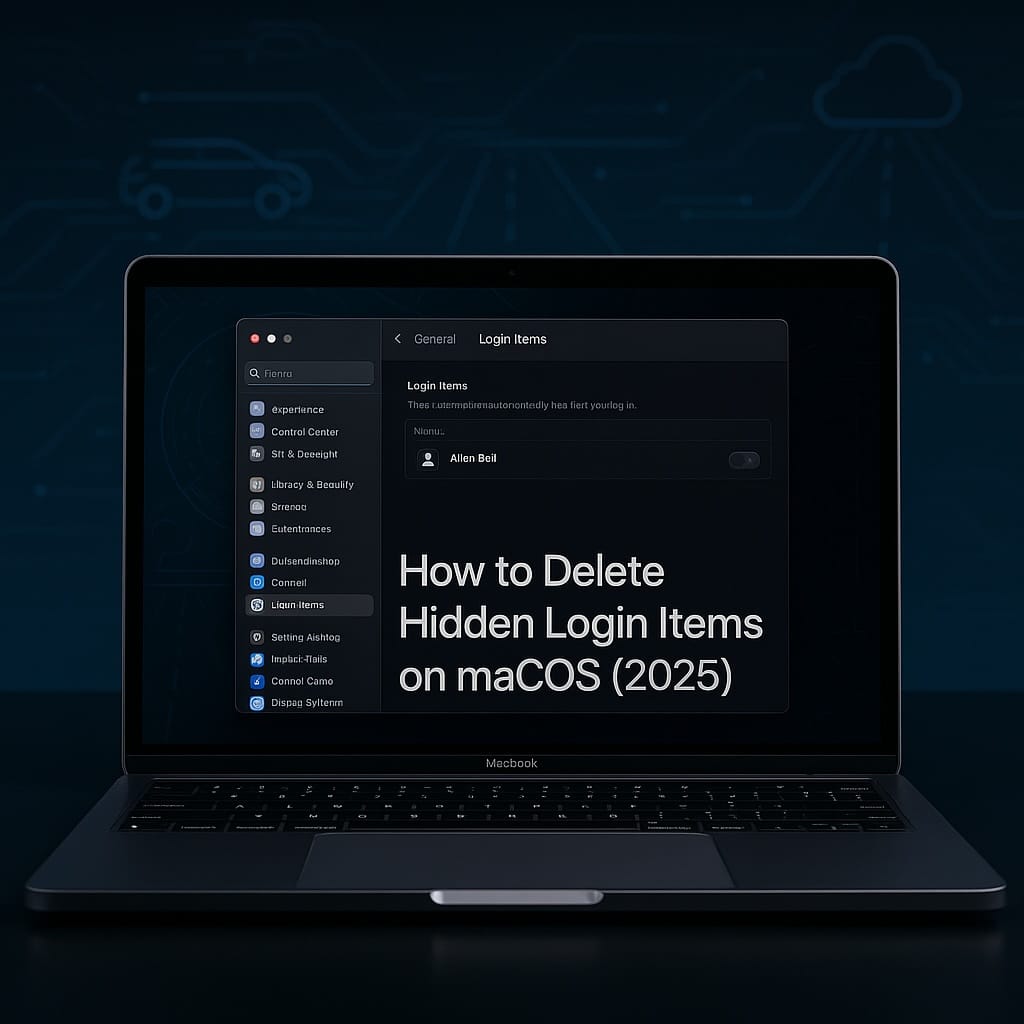
Ever opened System Settings → General → Login Items → Allow in the Background
…and found something like this?
❓ Allen Bai
❓ Cloudflare Inc.
❓ Dropbox
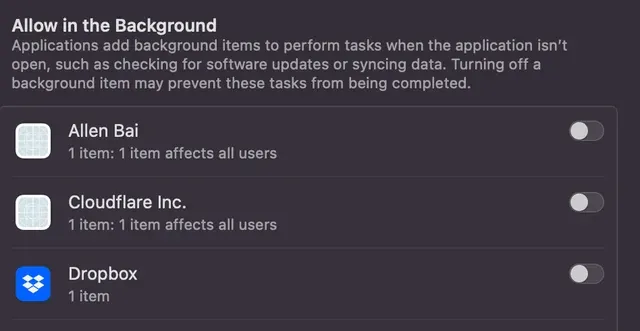
You might recognize Dropbox. But Allen Bai? That’s when things get spooky.
This article was inspired by a real mystery shared by Reddit user on a Reddit thread . The detailed comment on it offers the best real-world look into how Apple’s “background items” system works, and how it fails.
🌀 The Problem: Login Items Are Just the Tip of the Iceberg
macOS Ventura and newer versions introduced a more “user-friendly” interface to manage login/background apps. You can find it at:
System Settings → General → Login Items
There are two main sections:
- Open at Login – traditional startup apps
- Allow in the Background – helper processes, agents, etc.
You can toggle them off, but they don't really go away. That’s because Apple doesn’t show you:
- Where the item comes from
- What app owns it
- Whether it’s safe to delete
🕵️ The Allen Bai Case Study
Let’s go back to the Reddit post. The user found “Allen Bai” listed as a background item — but had no idea where it came from. After investigating, they discovered this was related to a leftover launch daemon file from a now-removed app:
/Library/LaunchDaemons/com.sysgeeker.ntfsd.plist
There’s no mention of “Allen Bai” inside that .plist file. So why is it showing?
Because the process was registered elsewhere — and macOS links that invisible reference to what it thinks is the “label.” This makes the system feel unpredictable, or even broken.
As the Reddit user put it:
"This opaque information practice in macOS Ventura is very annoying... MacOS nowadays makes things messy a lot."
— u/AppearanceSure1777
🤨 Why Stuff Like This Happens (and Keeps Happening)
Apple’s new background process model is… opaque at best. Here's why things break:
- Items are registered system-wide but show up in login items as "friendly" names.
- No traceable connection between name and file.
- No source app listed. Just a ghost in the UI.
The result? You see something like Allen Bai, but can’t trace where it came from.
🔎 How to Trace the Source of Unknown Login Items
When you see a mystery background process, follow these steps:
1. Search Common Launch Locations
Check the following folders:
/Library/LaunchDaemons//Library/LaunchAgents/~/Library/LaunchAgents/
Use Spotlight or Finder with “Show System Files” enabled, or run this Terminal command:
grep -Ri "the suspicious item name" /Library/Launch*
This searches the content of .plist files for any relevant match.
2. Use Activity Monitor
Open Activity Monitor and check if there's an active process with a matching or similar name. You can view the path of the running binary using Get Info.
3. Check for Hidden System Containers
In some cases, the item name is associated with a background system container or a helper binary you installed months ago.
Use:
codesign -dvv /path/to/suspect/file
To see the developer signature, and trace which app registered it.
4. Use KnockKnock (Free Tool)
KnockKnock by Objective-See is a free tool that lists everything that persists on startup, even if Apple’s UI doesn’t show it.
🧼 How to Actually Remove It
Step-by-step:
- Navigate to the relevant folder (e.g.,
/Library/LaunchDaemons/) - Find the
.plistfile that matches your suspicious item - Move it to Trash
- Reboot your Mac
- Go back to Login Items → Background and confirm it's gone
🧠 Tip: If you're unsure what a file does, Google its filename before deleting. Or use AppCleaner to do a safe full uninstall.
🤬 Why Doesn’t Apple Just Tell You?
That’s the real problem. Apple surfaces background items in a list — but gives you no context:
- What app it came from
- What it’s doing
- Whether it’s safe to remove
This lack of transparency makes even tech-savvy users feel lost.
✅ TL;DR Summary
| Problem | Solution |
|---|---|
| Don’t recognize a login/background item | Check common plist folders |
| Name shows up but can’t find file | Use grep, KnockKnock, or codesign |
| Deleted the app but item still shows | Delete leftover .plist manually |
| Don’t want to mess with system files | Use AppCleaner or KnockKnock |
| Can’t delete via System Settings | That’s normal — use the file system |
👋 Final Thoughts
If you’ve ever wondered “what the hell is this thing in my Mac’s startup list?” — you're not alone. This is why howtodelete.it.com exists. To help you take back control, delete the crap, and make your tech work for you — not the other way around.
🕳️ One More Layer: Where Was “Allen Bai” Registered?
The .plist file didn’t contain the name? So where did that label come from?
It might be in a BTM (Background Task Management) database, buried deep in system files.
That’s a whole rabbit hole for another post.
But if you're curious…
👉 Leave a comment or email me at [email protected].
Let’s dig it up together.